Simple Ways to Make Changes to Existing PDF Documents
By EasyPDFNex
22 Views
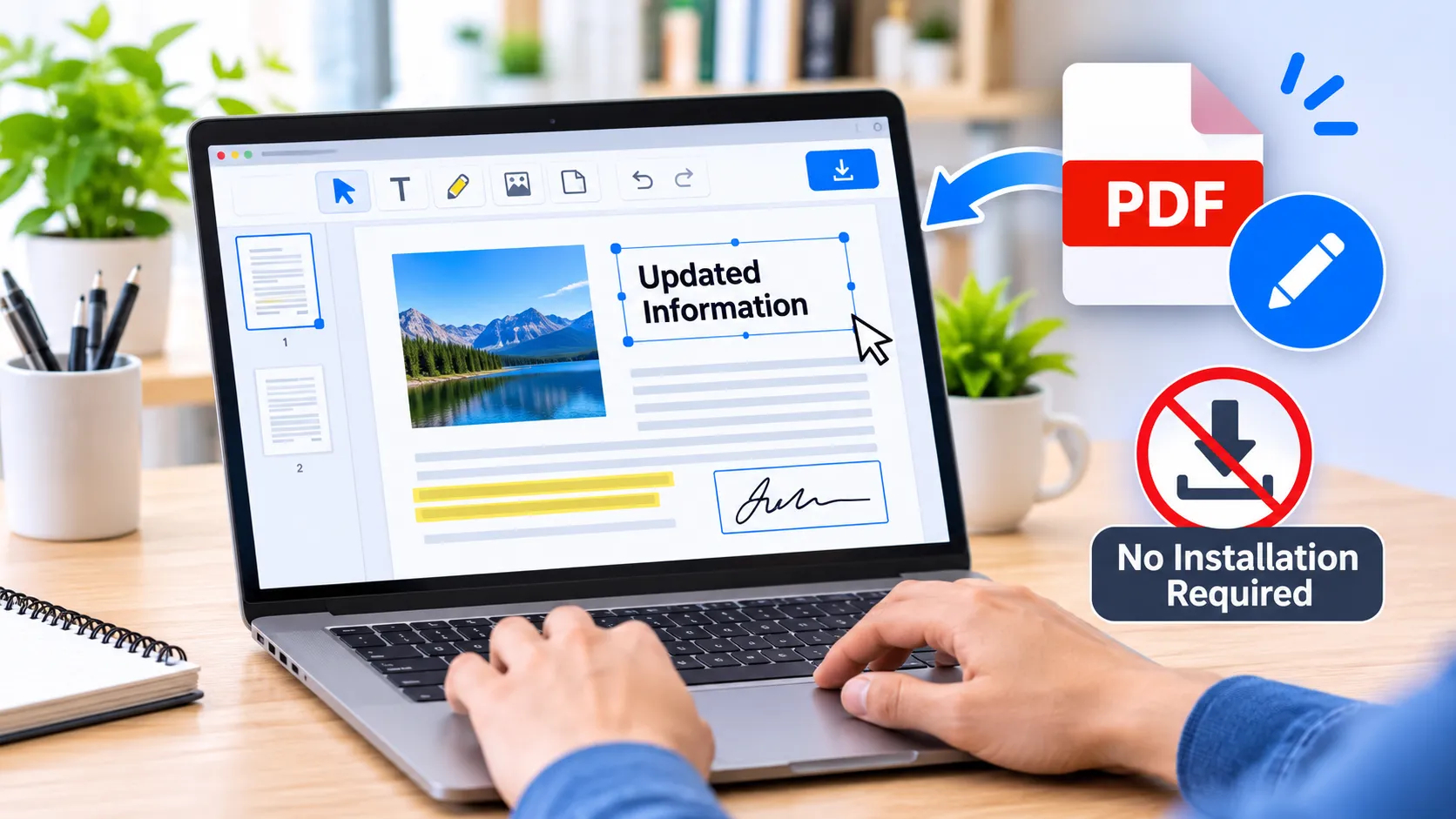
PDF files are one of the most popular formats for sharing and storing digital documents. They preserve formatting, work across different devices, and make it easier to distribute information professionally. However, there are times when an existing PDF needs updating. You might need to correct a spelling mistake, change outdated information, add a new image, insert comments, or remove unnecessary pages.
Traditionally, making these changes could be difficult because PDFs are not as flexible as Word documents. Fortunately, modern easy PDF editing tools make it possible to update documents without recreating everything from scratch. Whether you are a student, business professional, freelancer, or everyday computer user, understanding the right editing methods can save time and effort.
Here are some practical ways to make changes to existing PDF documents efficiently.
1. Identify the Changes Your PDF Document Needs
Before opening an editor, review your PDF carefully and identify exactly what needs to be changed. Having a clear editing plan helps prevent unnecessary modifications and makes the process more organized.
Start by checking the document for outdated information, spelling errors, incorrect dates, missing details, and formatting problems. Also, look for images or pages that may need replacement or removal.
Different changes require different editing approaches. For example:
- Text corrections: Fix spelling mistakes, update names, or change dates.
- Image replacement: Update photographs, diagrams, or company logos.
- Page management: Remove unnecessary pages or rearrange their order.
- Annotations: Add comments, highlights, or explanations.
- Form updates: Fill in missing information or correct existing entries.
Understanding your requirements before editing makes it easier to choose the appropriate tool and avoid damaging the original document.
2. Use Online PDF Editing Tools to Update Content
One of the simplest ways to change an existing PDF is to use an online PDF editor. These tools allow users to work with documents through a web browser without necessarily installing additional desktop software.
When you need to edit PDF content online, look for an editing tool that supports the changes you want to make. Depending on the editor, available features may include adding text, inserting images, highlighting important information, drawing shapes, and placing annotations.
A typical editing process involves a few straightforward steps:
- Open a reliable online PDF editing tool.
- Select and upload your existing PDF document.
- Choose the editing feature you need.
- Make the required changes to the document.
- Review the updated pages for errors.
- Export or download the edited PDF.
Online editing is particularly useful when working from different computers or when you need to make quick document updates. Before uploading confidential files, however, always review the service's privacy and security practices.
3. Edit Text, Images, and Other PDF Elements
Text and images are among the most frequently updated elements in PDF documents. For example, a business proposal may need a revised price, a report might require updated statistics, or a presentation document may need a new photograph.
Editing text can sometimes be more complicated than expected. Some PDF files contain selectable text, while others are scanned images of printed pages. The editing method depends on how the original document was created.
For selectable text, use an editor that supports direct text modification. You may be able to replace existing words, adjust font sizes, or insert additional information.
For scanned PDFs, Optical Character Recognition (OCR) can help convert images of text into machine-readable content. Once recognized, the text may become easier to edit, depending on the software.
When working with images, check whether the editor allows you to insert, resize, move, or remove visual elements. Pay attention to alignment and spacing so that the updated document maintains a professional appearance.
Remember that changing content is only part of the process. Maintaining the original document's readability and visual consistency is equally important.
4. Organize Pages and Add Useful Annotations
Sometimes, modifying a PDF does not require changing its actual text. You may simply need to reorganize the pages or provide additional information for readers.
Page management features can make these tasks much easier. Depending on the available PDF tool, you may be able to rotate pages, delete unwanted sections, insert additional pages, or rearrange the document.
Annotations are another useful way to improve an existing PDF without rewriting its original content.
For example, students can highlight important paragraphs in study materials, managers can add comments to reports, and clients can mark specific sections of a proposal that need revision.
Common annotation options include:
- Highlighting important sentences or paragraphs.
- Adding comments and text notes.
- Underlining essential information.
- Drawing shapes around specific sections.
- Adding arrows or visual indicators.
These features are particularly helpful when multiple people need to review the same document. They make feedback clearer and reduce the confusion that can happen when discussing changes through separate messages.
5. Protect Your Original File and Review the Final Document
Before making significant changes, keep an untouched copy of your original PDF. This simple habit provides a backup if something goes wrong during editing.
After completing the modifications, take time to review the entire document. Do not focus only on the pages you edited. Sometimes, adding text or changing images can affect spacing, alignment, or the overall appearance of nearby content.
Use this final checklist:
- Check spelling, grammar, dates, and updated information.
- Confirm that images appear correctly.
- Review page order and orientation.
- Check fonts, spacing, and text alignment.
- Make sure important information is not missing.
- Verify that links and interactive elements still work.
- Confirm that the exported PDF opens correctly.
If the document contains confidential information, consider whether it needs password protection or other security measures before sharing it.
A careful final review helps ensure that your modified PDF looks professional and communicates the correct information.
6. Choose the Right PDF Editing Solution for Everyday Work
Not every PDF editing task requires expensive desktop software. For simple changes, browser-based solutions can offer a convenient alternative. The best choice depends on your document type, editing requirements, privacy expectations, and available features.
For occasional updates, look for easy PDF editing tools that provide a straightforward interface and support the specific modifications you need. If you regularly work with complex documents, you may need more advanced features such as OCR, form editing, or detailed formatting controls.
EasyConverterTool can be a useful starting point when exploring convenient online document tools. Before choosing a particular feature, check the available options and make sure they match your editing requirements.
It is also worth considering how frequently you modify PDFs. Students may prioritize simple annotation and text updates, while businesses may need document organization and consistent formatting. Choosing an appropriate solution helps make routine document management less complicated.
Final Thoughts
Making changes to existing PDF documents does not have to be a difficult process. With the right approach, you can correct text, update images, organize pages, add annotations, and improve documents without rebuilding them from scratch.
Start by identifying the changes you need, choose a suitable editing method, and always review the final version before sharing it. Keeping an original backup and paying attention to document security can also prevent common problems.
Whether you are updating a school assignment, revising a business report, or correcting an everyday document, easy PDF editing tools can make the entire process faster and more manageable. By choosing the right tools and following a few simple practices, you can modify PDF documents confidently while maintaining their professional appearance.