How to Clean Your iPhone Photo Gallery by Swiping Left or Right
20 Views
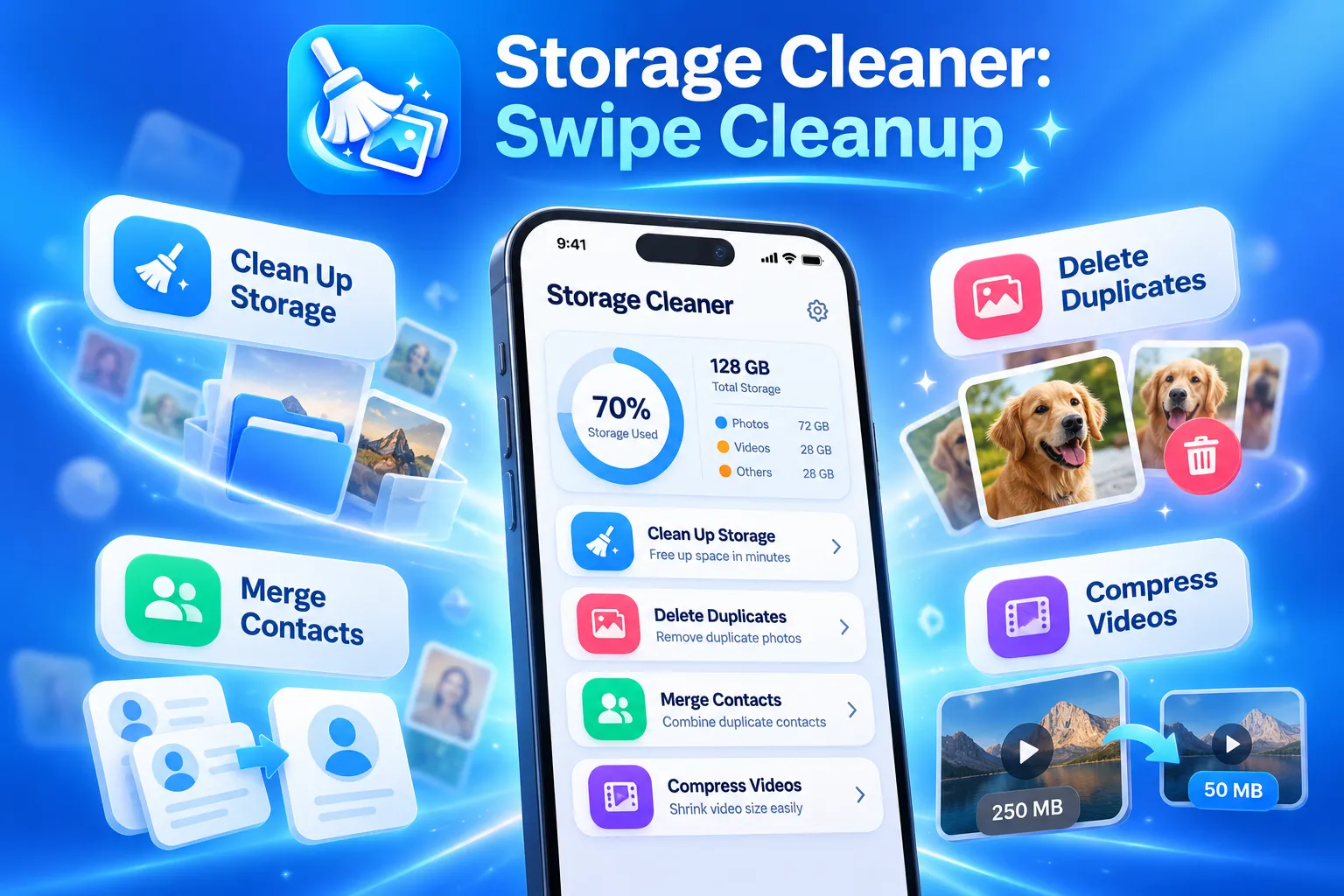
Is your iPhone photo gallery filled with duplicate pictures, old screenshots, blurry photos, and unwanted videos? Finding important memories becomes frustrating when thousands of images are scattered throughout your camera roll. Manually reviewing and deleting them can also take considerable time.
A swipe photo cleaner app for iPhone offers a simpler approach to photo organization. Instead of selecting pictures individually, you can swipe through your gallery to decide what to keep and what to remove.
Storage Cleaner: Swipe Cleanup is an iPhone storage management app designed to help users organize photos, identify duplicates, compress videos, and manage unnecessary files.
Why Does Your iPhone Photo Gallery Become Cluttered?
Everyday smartphone activities gradually fill your photo library with unnecessary content.
Taking several pictures of the same moment, saving screenshots, downloading images, and recording videos can consume valuable storage space.
Even similar-looking photos may occupy significant storage when accumulated over time.
For users wondering how to clean an iPhone photo gallery without deleting important pictures, organizing files into manageable groups is an effective starting point.
Swipe Left or Right to Organize Your Photos
Traditional photo cleanup often involves opening images, selecting unwanted files, and repeatedly confirming deletion.
Storage Cleaner: Swipe Cleanup introduces a more interactive method inspired by familiar swipe gestures.
Here's how the process works:
- Swipe right to keep: Review a picture and swipe right when you want to retain it.
- Swipe left to remove: Swipe left to mark an unwanted photo for cleanup.
- Review your selections: Check the photos marked for removal before confirming deletion.
This approach makes it easier to sort through large photo collections without repeatedly navigating different menus.
The app also supports filtering photos by categories, helping users focus on particular types of images.
Which Photos Should You Remove First?
If your iPhone storage is almost full, start with files that are unlikely to be needed.
- Duplicate photos: Multiple copies of the same picture can unnecessarily occupy storage.
- Similar images: Review repeated photographs and keep the clearest or most meaningful versions.
- Old screenshots: Remove temporary screenshots containing outdated information.
- Blurry photos: Identify poorly focused images that no longer serve a useful purpose.
- Unwanted recordings: Review old screen recordings and videos that consume considerable space.
The app's duplicate photo cleaner and Smart Clean features help users identify potential cleanup opportunities.
Remember to review suggested duplicates carefully because visually similar photographs may contain meaningful differences.
Can You Free Up Storage Without Deleting Videos?
Yes. Removing files isn't the only way to manage iPhone storage.
Storage Cleaner: Swipe Cleanup includes photo and video compression tools designed to reduce file sizes.
For example, large recorded videos may occupy substantial space even when you want to keep them.
The app provides compression options and estimated storage savings, allowing users to compare available choices.
Compression can reduce visual quality, so preserve original files when their full resolution matters.
What Happens After You Delete Photos?
When photos are deleted from an iPhone, they generally move into the Recently Deleted album for approximately 30 days.
During this period, they may still occupy device storage until permanently removed.
Before permanently deleting anything, confirm that important memories have been backed up.
If iCloud Photos is enabled, deleting a synced photo can also remove it from other devices using the same photo library.
Keep Your iPhone Gallery Organized
Regular maintenance prevents unnecessary photos from accumulating again.
Consider reviewing screenshots weekly, deleting unwanted duplicates monthly, and compressing large videos when appropriate.
With swipe-based photo sorting, Smart Clean, duplicate detection, and video compression, Storage Cleaner: Swipe Cleanup provides practical tools for managing your iPhone gallery.
Whether you're searching for an iPhone photo cleaner, duplicate photo remover, swipe cleanup app, or iPhone storage cleaner, organizing your photos regularly can make finding memories easier and help reclaim valuable storage space.